Introduction
The VALMIDO device is connected to a Companion device (e.g., phone or PC) through Bluetooth and the user can interact with it through several components such as buttons and display. All these main components are introduced in the following sections.
Card overview
Below is an example of a VALMIDO device. The device’s artwork can be personalised for en enterprise or a user:
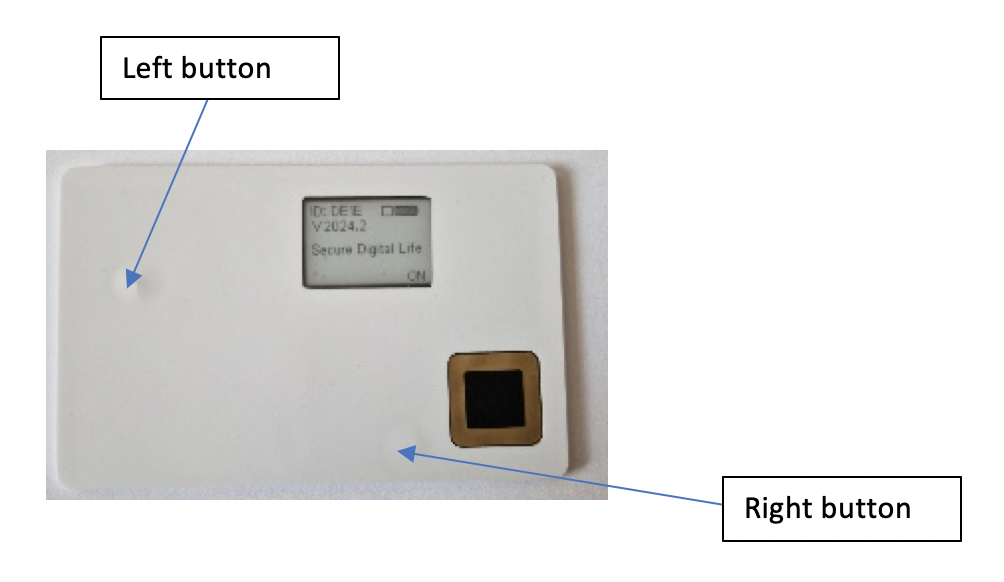
In any cases, every VALMIDO device has:
a display in the upper right corner,
a fingerprint sensor in the lower right corner,
a wireless antenna in the back (but not visible),
and two buttons, one to the left and one to the right (buttons position may change between the different revisions)
Display
Here are several visual indicators that are displayed on the VALMIDO device display, in three screen areas:
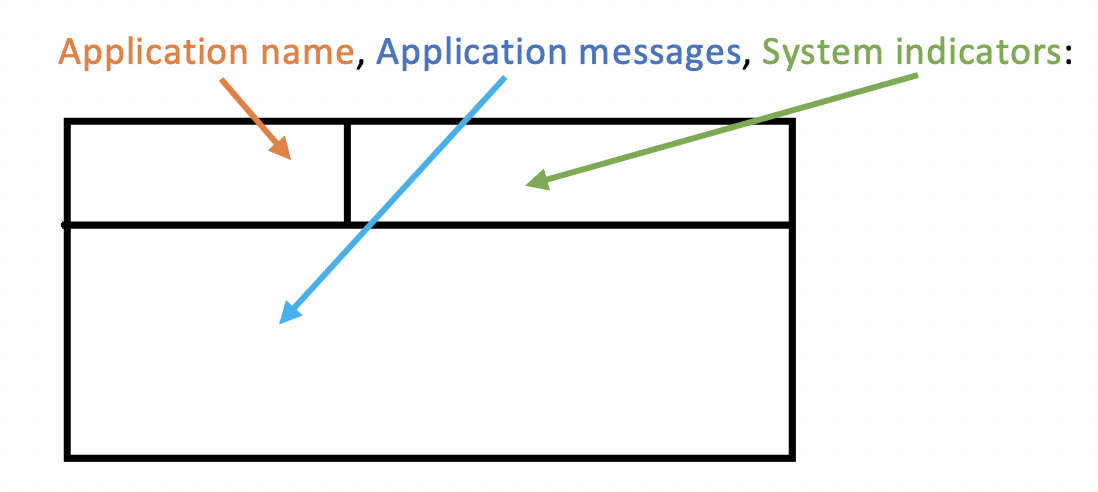
Application name:
Applications as of today: Empty, BLE (during BLE pairing), DFU (Firmware Update), FIDO (while in command processing or when needing a display or a specific interaction in a FIDO passwordless protocol interaction).
System indicators details:

 The Qi charging indicator flash icon appears at the left of battery indicator
Battery gauge:
 Battery empty
  Battery at 30%
  Battery at 90%
Bluetooth indicator:
 The Bluetooth symbol, indicating that Bluetooth is active and the number of simultaneous connections
Fingerprint sensor
Put your finger on the fingerprint sensor when a message on the device display asks for fingerprint validation. You can enroll several fingers for this purpose (see Initial setup).
Switching On/Off
When VALMIDO device is switched off, it displays the following:
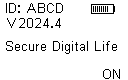
Powered off display
In this state, three main data are displayed:
ID: The Bluetooth name of this VALMIDO device. In the case of the above figure, when this VALMIDO device will be powered on it will be seen by a PC or a smartphone as: “VALMIDO_ABCD”. This is useful for finding a specific device when several VALMIDO devices are powered on in the same room.
The current version of the installed firmware.
The battery level measured when power off occurred. If the VALMIDO device remains powered off several days, at next start-up, the battery level may be lower than displayed at power off.
In order to perform power on, right button must be pressed. Another way to power on is to put the VALMIDO device on a wireless charger.
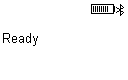
Powered on display
In order to perform power off, the right button must be pressed at least two seconds and then released. Before powering off a message is displayed
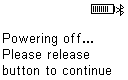
Powering off display
Valmido secure device Qi charging
The first thing to do with the VALMIDO device is to charge its battery in order to have sufficient energy level to have it functional. A gauge on the VALMIDO device displays the Battery level.
Put your VALMIDO device on a Standard Qi Battery Charger for mobile phone but do not use a charger for earpieces, watches, and in general smaller devices. Your VALMIDO device can also benefit from the Qi reverse charging capacity of your mobile phone, if it has this advanced feature.
You can place the VALMIDO device on the charger whatever the VALMIDO device previous state is (if it is Idle or Active) and you can find the best position on the charger. For this, verify first that the charger Led(s) indicate that it is charging properly, and then find the position ideally when the VALMIDO device display shows the charging icon in the system indicators zone on the screen. Find a position where the charging icon appears most of the time. In case there is an oscillation the charging time will be longer.
You can leave the VALMIDO device on the charger until the gauge shows 100%. The Gauge will show the Battery level evolution and charging icon at the left of the gauge is displayed as long as charging is in progress.
As long as charging is in progress, the VALMIDO device will stay Active and it can be used without restrictions, for instance for doing FIDO transactions.
If the gauge reaches 0%, the VALMIDO device goes on Battery low status and the only way to go back in Ready status is to put the VALMIDO device on a Qi charger.
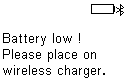
Battery Low status
Pairing
The VALMIDO device is a Bluetooth device and needs to be paired with your other Companion device (e.g., Windows PC, Mac, Linux, iPhone oor Android phone. The pairing is done once only and then the Valmido device is recognized by your Companion device for FIDO operations or for other purposes. If for any reason pairing is lost due to some events you should repeat this procedure again.
On a Windows PC use the native Bluetooth pairing interface as with any other Bluetooth device.
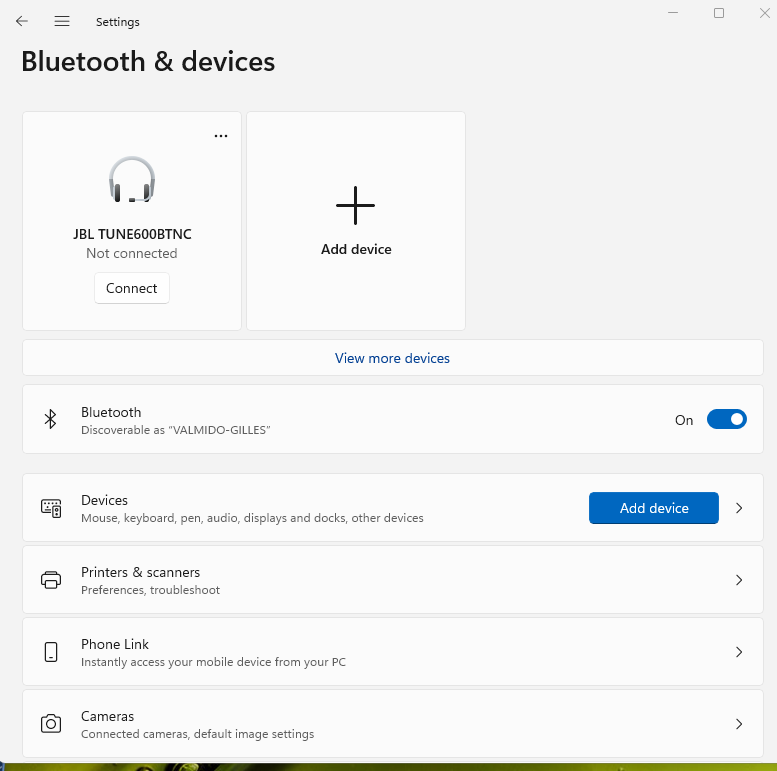
Then follow the menus instructions on how to pair the VALMIDO device with Windows.
Once the pairing process is started the VALMIDO device will display a number on its screen and this number should be entered in the field that is displayed by the Bluetooth Windows interface.
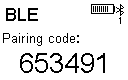
Pairing code
If you will have any issue with the Bluetooth connection between the VALMIDO device and the Window PC (after some time and in rare cases) it is advised to do a “device Forget” operation and then do the pairing again. You can find how to do a Bluetooth “Forget device” operation by searching the Internet as related to your Windows installed version. This is a very straightforward, easy and standard operation.
On Linux use the native Bluetooth pairing interface as with any other Bluetooth device. Then follow the menus instructions on how to pair the VALMIDO device with Linux.
Once the pairing process is started the VALMIDO device will display a number on its screen and this number should be entered in the field that is displayed by the Bluetooth Linux user interface.
Pairing code
If you will have any issue with the Bluetooth connection between the VALMIDO device and Linux (after some time and in rare cases) it is advised to do a “device Forget” operation and then do the pairing again. You can find how to do a Bluetooth “Forget device” operation by searching the Internet as related to your Linux installed version. This is a very straightforward, easy and standard operation.
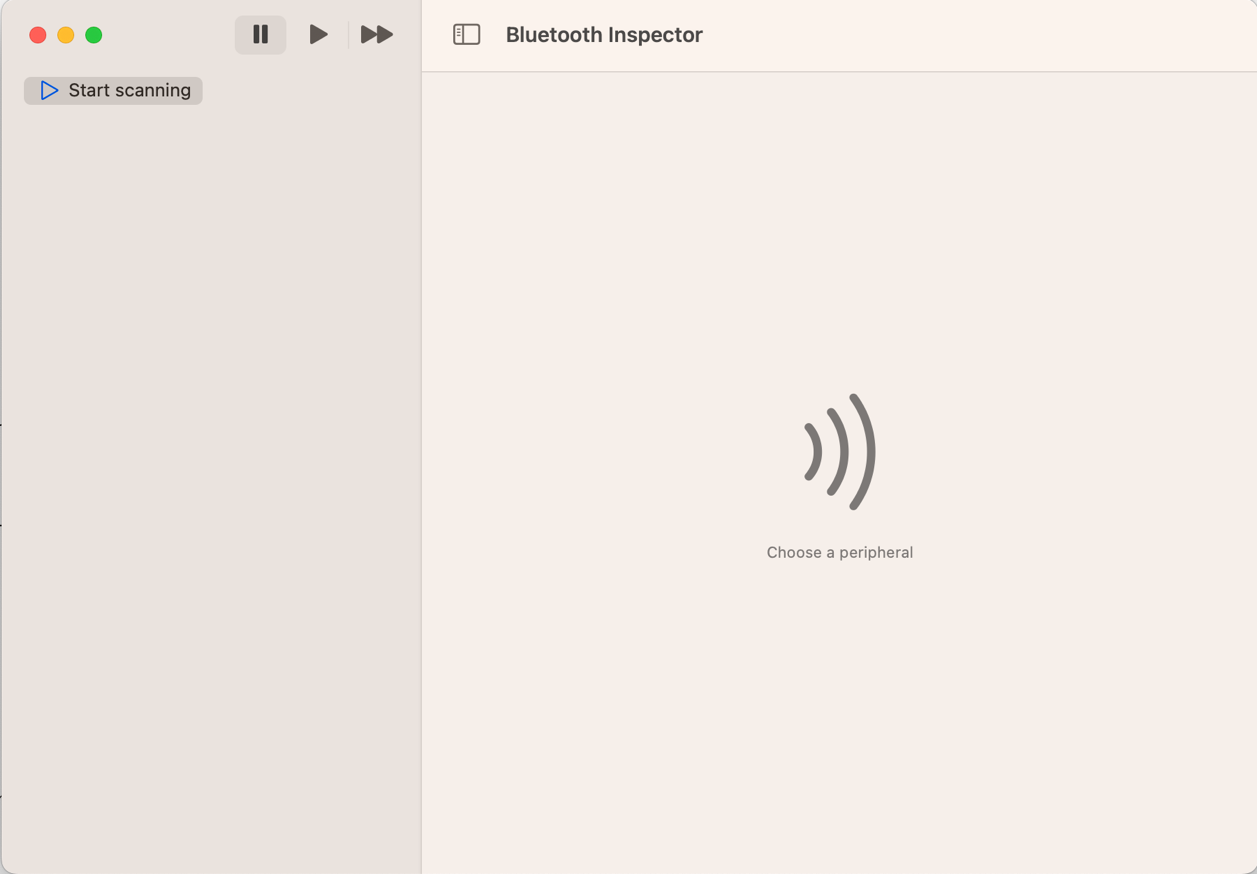
In the current version of the VALMIDO device it may be that the native Mac Bluetooth pairing interface will not detect the VALMIDO device but this will be fixed and available in the near future. In this case you will need to download the “Bluetooth Inspector” application from the Mac App Store (which is a certified mac application).
Launch the application and click on the “start scanning” icon on the upper left side.
When the application detects the VALMIDO device on the panel’s left side you should click on it. The information on the VALMIDO device is displayed on the panel’s right side and you should click on the “Interrogate” button that is displayed below this information.
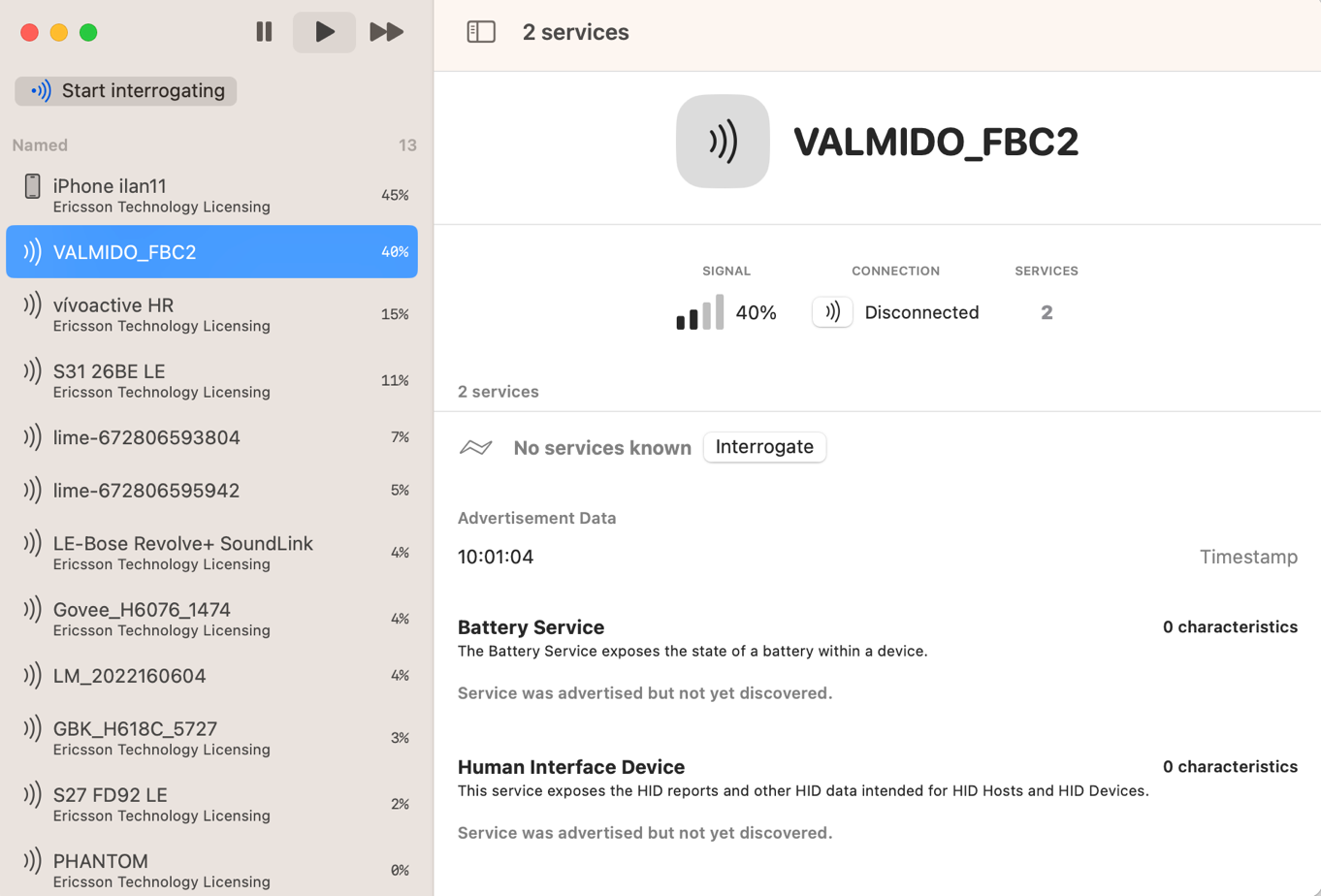
This action will start the pairing process. The VALMIDO device will display a number on its screen and this number should be entered in the field that is displayed by the Bluetooth Inspector application.
Pairing code
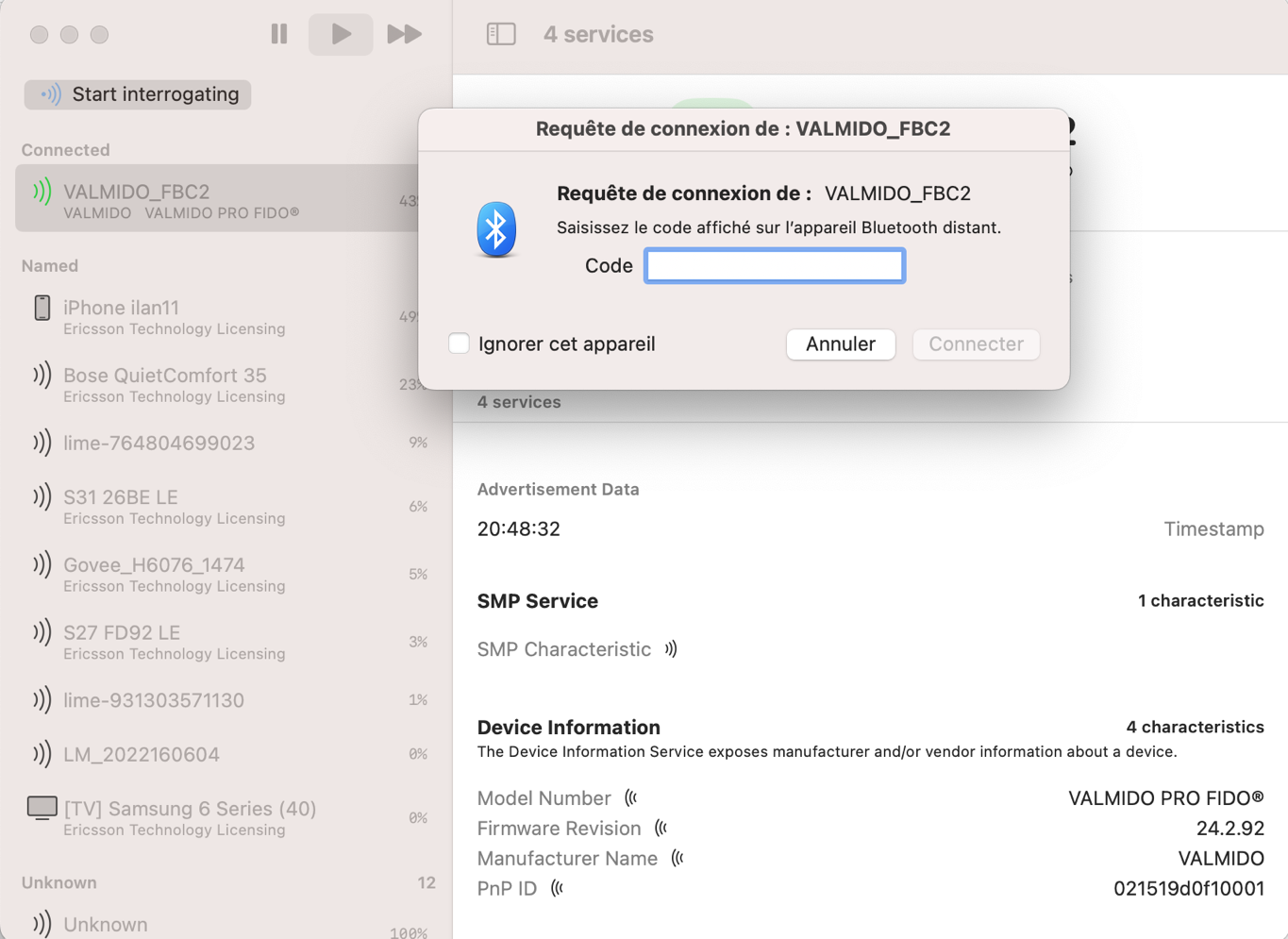
Once the number is correctly entered the two devices will be paired. If you will have any issue with the Bluetooth connection between the VALMIDO device and the Mac (after some time and in rare cases) it is advised to do a “device Forget” operation and do the pairing again. You can find how to do a Bluetooth “Forget device” operation by searching the Internet as related to your MacOS installed version. This is a very straightforward, easy and standard operation.
On iPhone use the native Bluetooth pairing interface as with any other Bluetooth device. Then follow the menus instructions on how to pair the VALMIDO device with iPhone.
Once the pairing process is started the VALMIDO device will display a number on its screen and this number should be entered in the field that is displayed by the Bluetooth iPhone interface.
Pairing code
If you will have any issue with the Bluetooth connection between the VALMIDO device and the iPhone (after some time and in rare cases) it is advised to do a “device Forget” operation and then do the pairing again. You can find how to do a Bluetooth “Forget device” operation by searching the Internet as related to your iPhone installed version. This is a very straightforward, easy and standard operation.
On an Android phone use the native Bluetooth pairing interface as with any other Bluetooth device. Then follow the menus instructions on how to pair the VALMIDO device with your phone.
Once the pairing process is started the VALMIDO device will display a number on its screen and this number should be entered in the field that is displayed by the Bluetooth phone interface.
Pairing code
If you will have any issue with the Bluetooth connection between the VALMIDO device and the Android phone (after some time and in rare cases) it is advised to do a “device Forget” operation and then do the pairing again. You can find how to do a Bluetooth “Forget device” operation by searching the Internet as related to your Android phone installed version. This is a very straightforward, easy and standard operation.